Claude
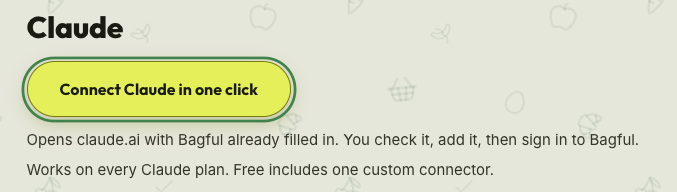
Connect Claude in one clickOpens claude.ai with Bagful already filled in. You check it, add it, then sign in to Bagful.
Works on every Claude plan. Free includes one custom connector.
Rather add it by hand? It takes the Bagful address:
https://api.bagful.app/mcp
- 1Click “Connect Claude in one click”. claude.ai opens with Bagful filled in.
- 2Check the name and address, click “Continue”, then “Add”.
- 3Click “Connect”, sign in to Bagful and allow it.
Full guide with screenshotsStep by step
- 1
Click “Connect Claude in one click”
claude.ai opens in a new tab with Bagful already filled in. Sign in to Claude if it asks.
- 2
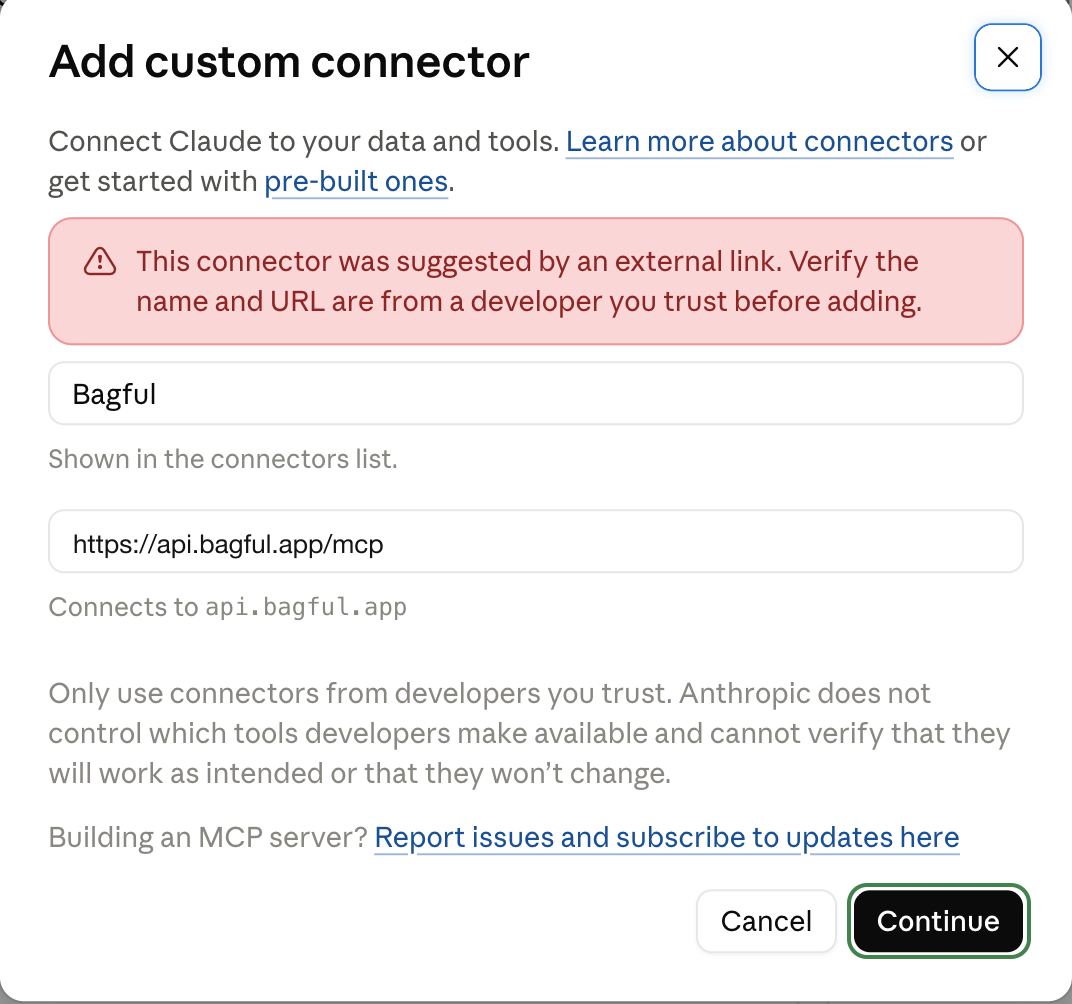
Check it and click “Continue”
The name says Bagful and the address is the Bagful address above. Claude notes that the values came from a link.
- 3
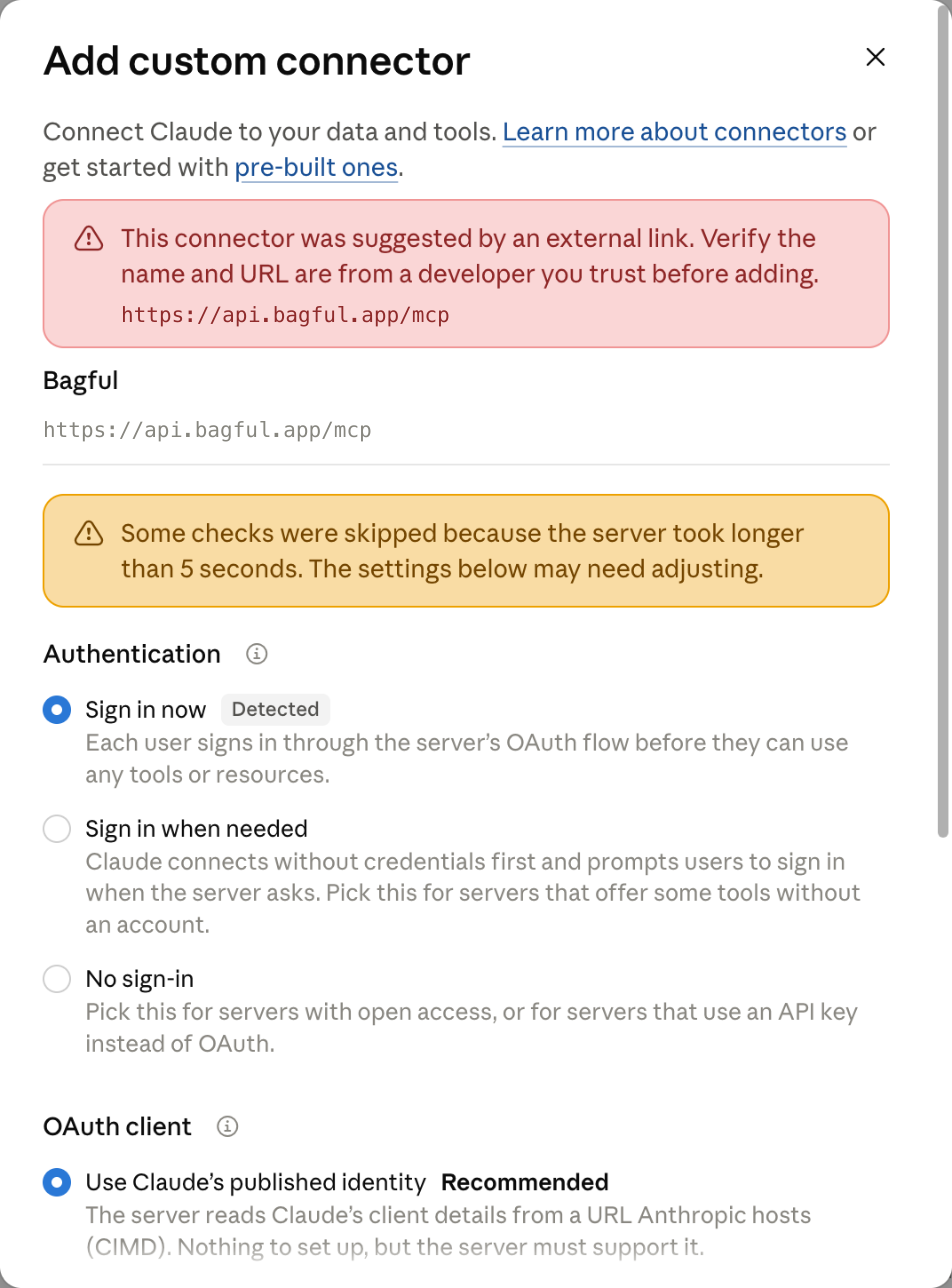
Leave the sign-in settings and click “Add”
Claude checks Bagful and chooses how you sign in. Keep what it chose and click “Add” at the bottom.
- 4
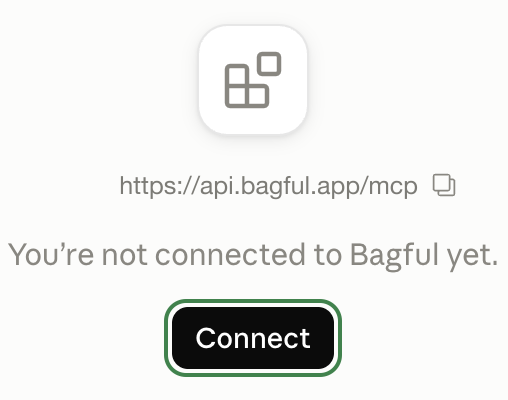
Click “Connect”
Claude opens Bagful in your connectors. “Connect” takes you to Bagful.
- 5
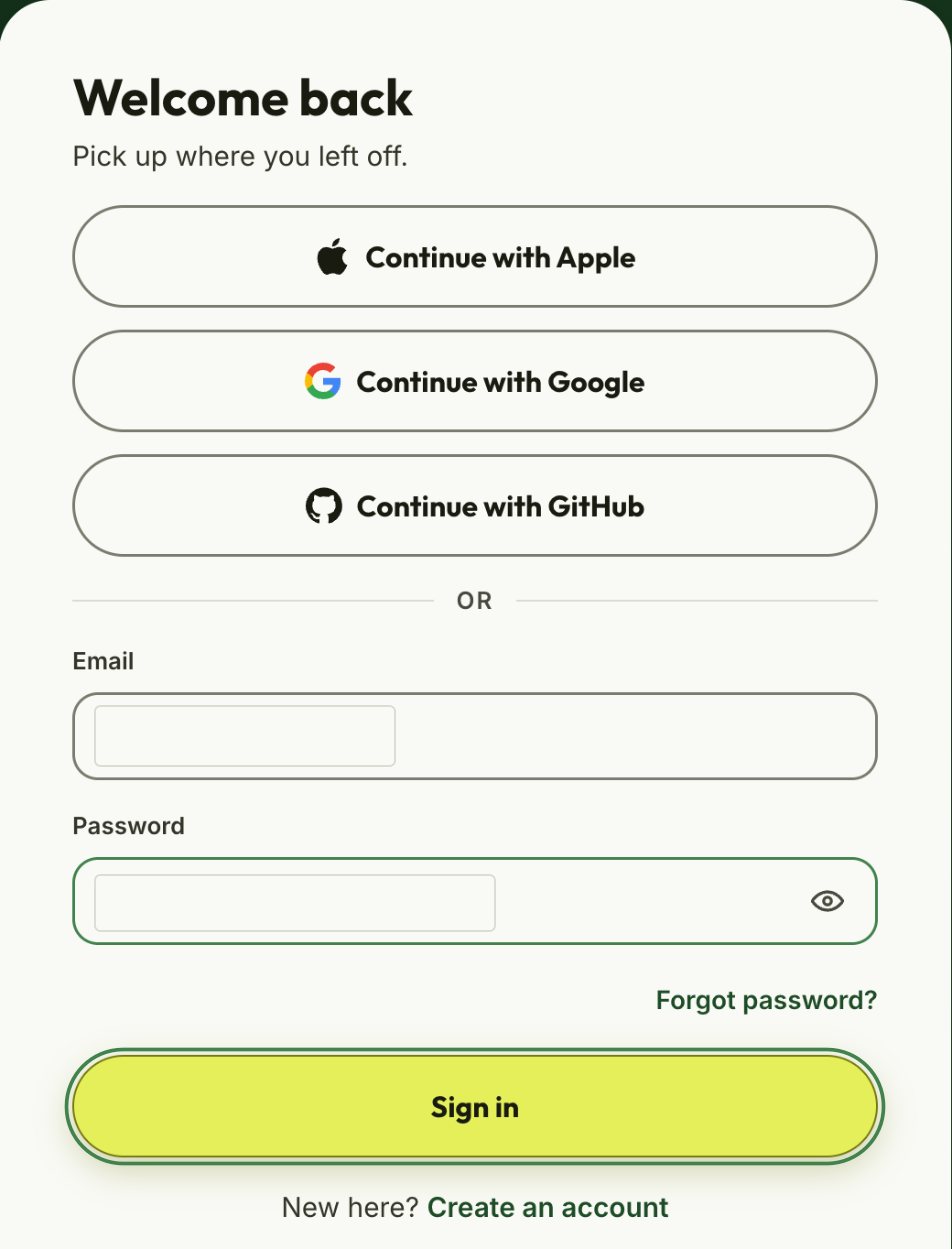
Sign in to Bagful
Use the account your bags are in. If you’re already signed in, Bagful skips this.
- 6
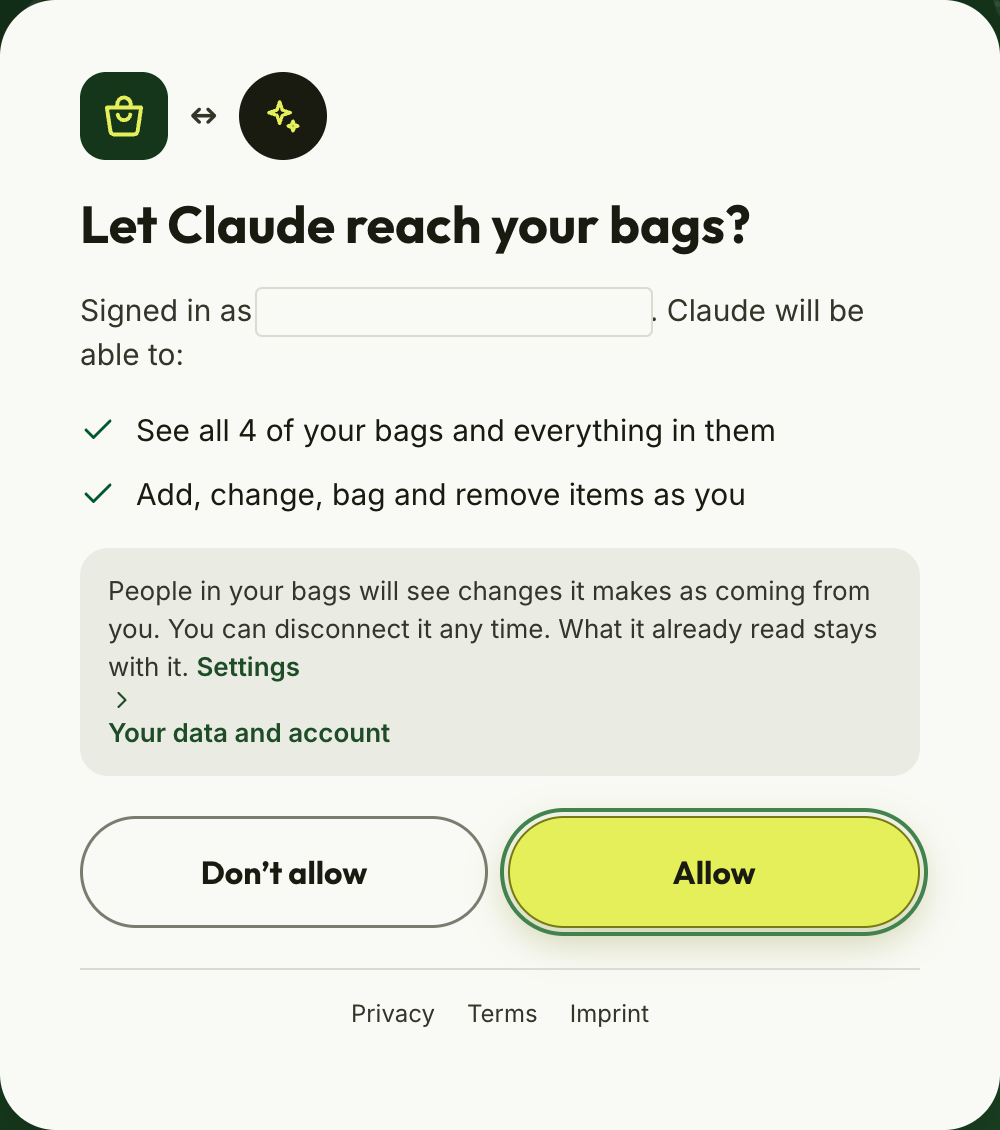
Click “Allow”
Bagful shows what Claude will be able to do: see and change all your bags as you. You can disconnect it any time.
- 7
Try it
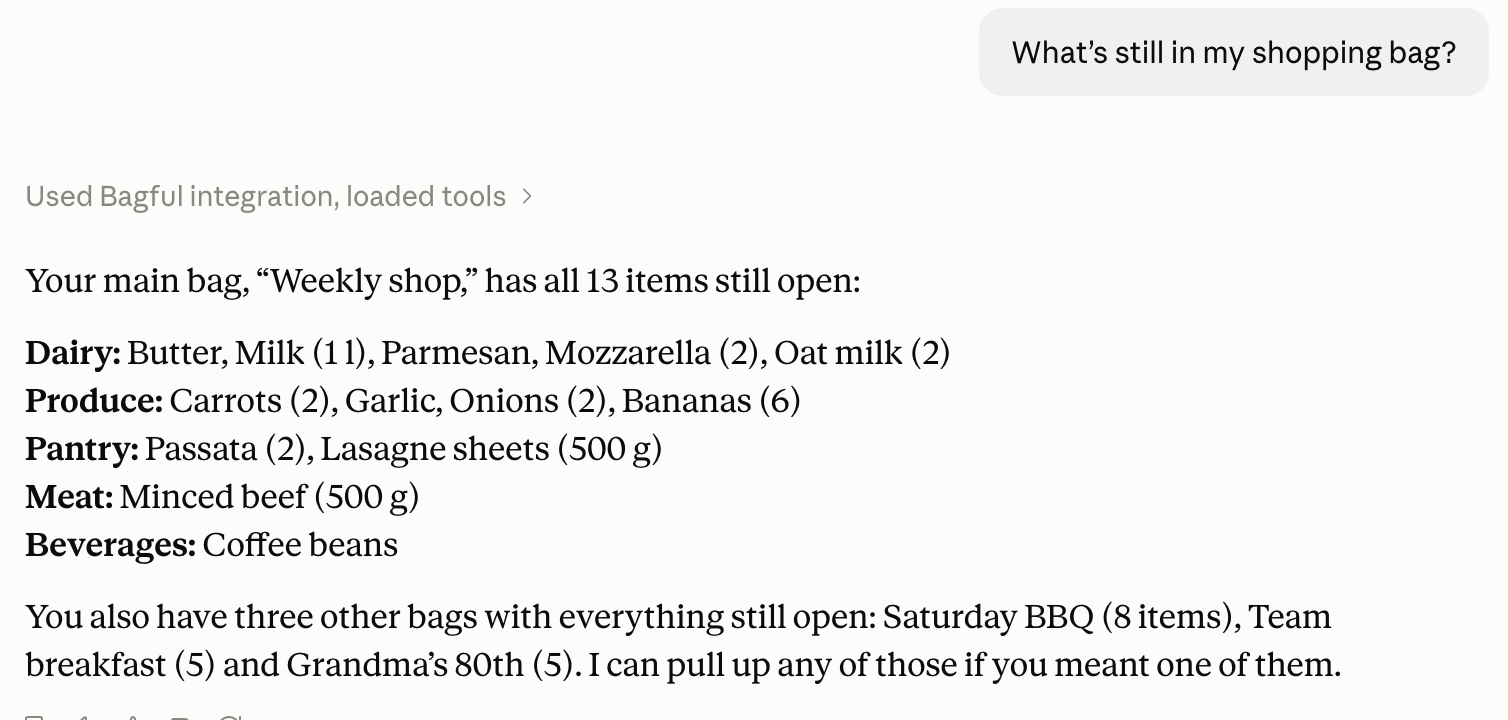
In a new chat, ask: “What’s still in my shopping bag?” The first time, Claude asks before it uses Bagful: click “Allow once” or “Always allow”.
Not working?
- Claude’s Free plan includes one custom connector. If yours is taken, remove it or choose another plan before adding Bagful.
- On a Team or Enterprise plan, an Owner adds Bagful for the organization first. Then you click “Connect” next to Bagful in Claude’s connectors.
- Pressed “Don’t allow” by mistake? Start connecting again from your assistant.
- See your connected assistants in Settings. They’re under “Your data and account”, where you can also disconnect one.
- Still stuck? Write to us.
Claude is a trademark of Anthropic. Bagful is not affiliated with Anthropic.